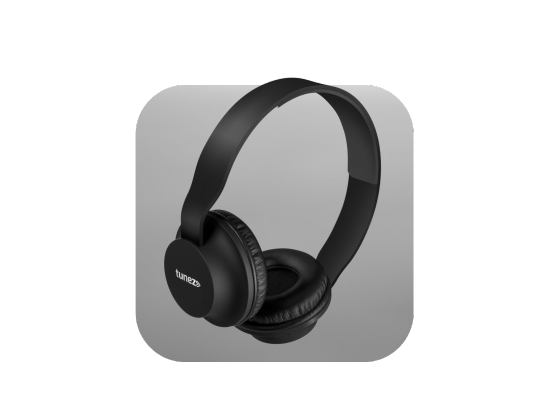




Connecting Bluetooth headphones to a TV lets you watch movies, shows, sports, or other content without playing sound through the TV speakers. It is especially useful for late-night viewing, shared rooms, or when you want clearer audio at a comfortable volume.
Most Bluetooth-enabled smart TVs can pair directly with compatible headphones. If your TV does not support Bluetooth audio, a Bluetooth transmitter connected to an available audio output can provide an alternative.
Check If Your TV Supports Bluetooth Headphones
Before pairing your headphones, check whether your TV supports Bluetooth audio output.
Open the TV’s Settings and look under options such as:
- Sound or Audio
- Sound Output
- Audio Output
- Bluetooth Speaker List
- Bluetooth Devices
The exact menu depends on the TV manufacturer and model. If you cannot find a Bluetooth audio option, check the TV’s user manual or specifications.
How to Connect Bluetooth Headphones to a TV
Once you confirm Bluetooth support, follow these steps:
1. Put Your Headphones in Pairing Mode
Turn on the headphones and activate Bluetooth pairing mode. This is usually done by holding the power or Bluetooth button until an indicator light flashes or a voice prompt confirms pairing mode.
Keep the headphones close to the TV during setup.
2. Open the TV’s Bluetooth Audio Settings
Go to Settings > Sound > Audio Output and select the Bluetooth or wireless audio option.
Some TVs may use a menu such as Bluetooth Speaker List or Pair New Device.
3. Select Your Headphones
Wait for the TV to scan for nearby Bluetooth devices. Select your headphones from the available device list.
If the TV asks for confirmation, accept the pairing request.
4. Select Bluetooth as the Audio Output
After pairing, make sure the TV is using the Bluetooth headphones as its active audio output.
Play a video and check whether the sound is coming through the headphones.
What If Your TV Does Not Have Bluetooth?
You can still use Bluetooth headphones with a TV that lacks built-in Bluetooth by using a Bluetooth audio transmitter.
A transmitter connects to an available audio output on the TV, such as:
- 3.5 mm headphone output
- Optical audio output
- RCA audio output
Connect the transmitter to the appropriate port, switch it to pairing mode, and then pair your headphones with the transmitter.
Before buying one, check which audio output your TV provides and whether the transmitter supports the connection type you need.
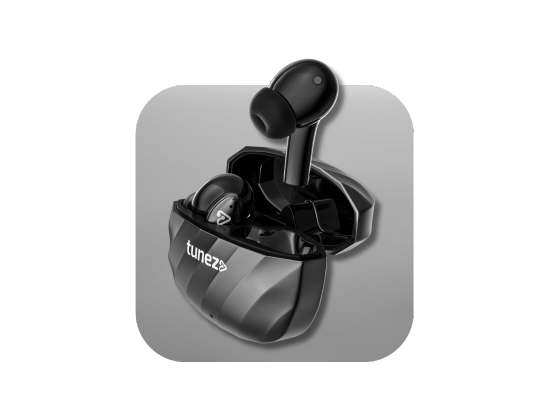
Can You Connect Wireless Earbuds to a TV?
Yes. Bluetooth earbuds generally connect to a compatible TV in the same way as Bluetooth headphones.
Put the earbuds into pairing mode, open the TV’s Bluetooth audio settings, and select the earbuds from the device list.
However, some TVs may have compatibility limitations or support only certain Bluetooth audio profiles. If the earbuds do not appear, disconnect them from nearby phones or other devices and try pairing again.
How to Fix Bluetooth Headphones That Won’t Connect to a TV
If your headphones are not pairing, try these steps in order:
- Move the headphones closer to the TV during pairing.
- Disconnect the headphones from your phone or another previously connected device.
- Charge the headphones and try pairing again.
- Restart both devices before starting a new pairing attempt.
- Remove the headphones from the TV’s saved Bluetooth devices and pair them again.
- Check compatibility if the headphones still do not appear.
If the headphones connect but there is no sound, check the TV’s audio output and make sure Bluetooth audio is selected.
How to Reduce Bluetooth Audio Delay on TV
A noticeable delay between the picture and sound can occur when Bluetooth audio is being processed.
Try these solutions:
- Check the TV for Audio Sync or Lip Sync settings.
- Look for a low-latency or gaming audio mode if supported.
- Keep the headphones within a reasonable range of the TV.
- Check whether both the TV and headphones support a compatible low-latency Bluetooth codec.
Not every TV and headphone combination supports low-latency audio, so a small delay may remain even after adjustments.
Can Two Bluetooth Headphones Connect to One TV?
It depends on the TV. Many TVs allow only one Bluetooth audio connection at a time, while some newer models support multiple Bluetooth audio devices or a dedicated dual-audio feature.
Check your specific TV model’s specifications before purchasing a second pair of headphones for shared listening.
Conclusion
Connecting Bluetooth headphones to a TV is usually a straightforward process, put the headphones into pairing mode, open the TV’s Bluetooth audio settings, select the headphones, and choose them as the sound output.
If your TV does not support Bluetooth, a compatible audio transmitter can add wireless connectivity. For connection problems, checking pairing mode, existing device connections, audio output settings, and Bluetooth compatibility can resolve most common issues.