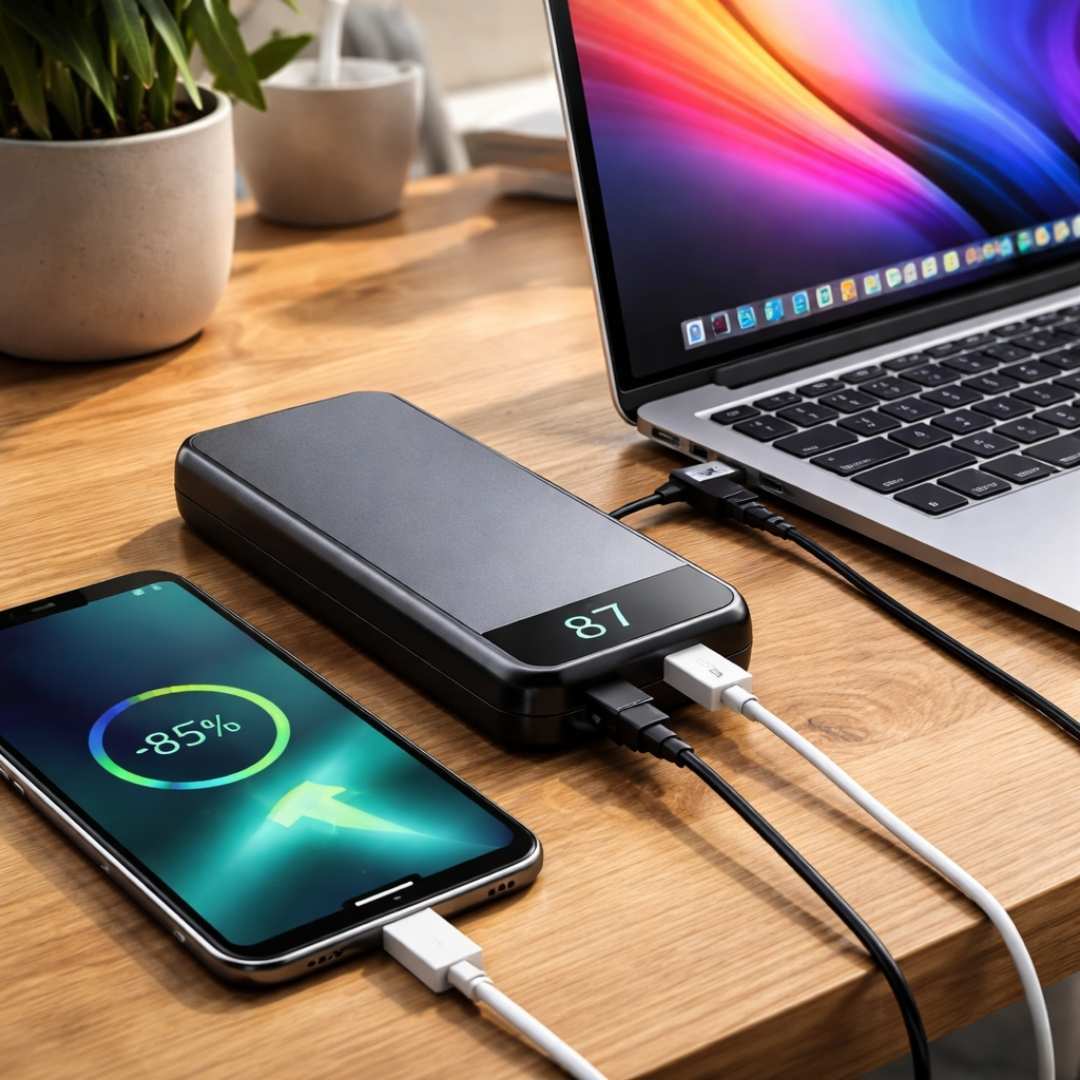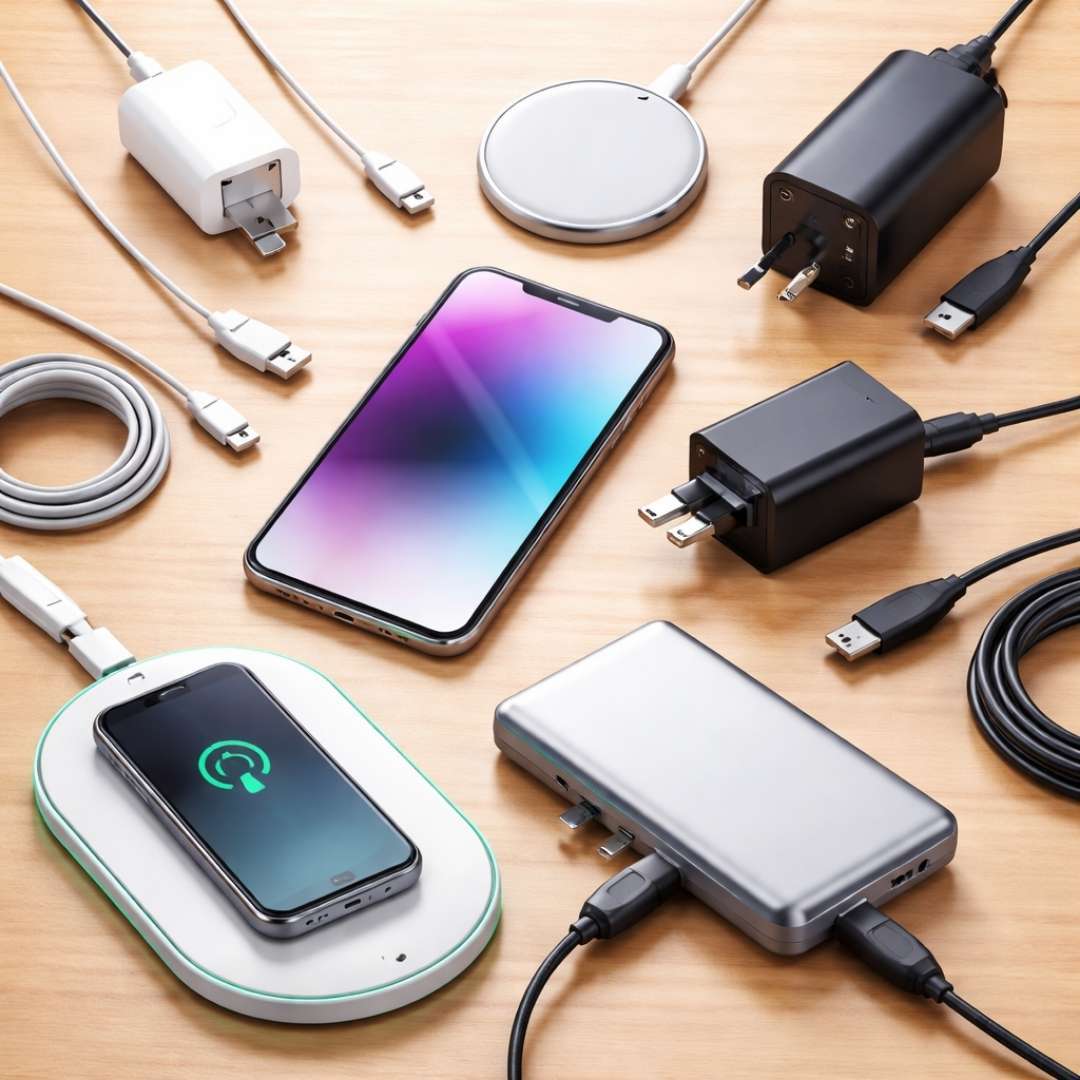






USB ports are everywhere, yet most people plug in cables without knowing what each port actually does. From charging phones to transferring photos and powering laptops, USB ports quietly keep modern life running. Understanding the types of USB ports helps you avoid slow speeds, wrong cables, and wasted money.
In this guide, we will break down USB ports in a clear, practical way, using everyday examples so you can instantly recognize and use the right one.
What is a USB Port and Why Does It Matter?
A USB port is a universal interface that allows devices to connect, share data, and receive power. Over the years, USB has evolved to support faster speeds, higher power, and slimmer devices.
Today, different USB ports exist because not all devices need the same size, speed, or power. A printer, phone, and laptop may all use USB, but they rely on different port designs.
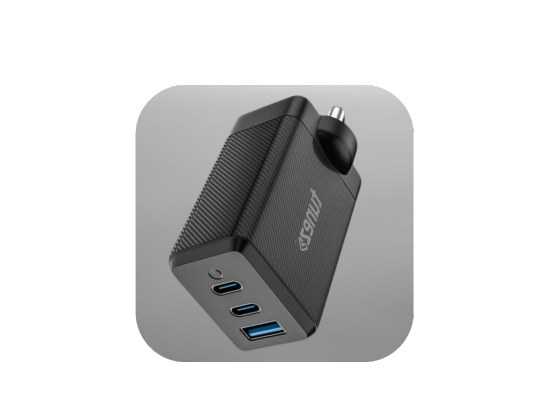
Shop mobile chargers built for speed reliability and safety so your devices stay fully powered whether at home office or on the go every day.
Main Types of USB Ports You Should Know
Let’s look at the most common USB port types you’ll find on phones, computers, chargers, and accessories.
USB Type A Port
- A rectangular shape that plugs in only one way
- Found on desktops, TVs, power banks, and wall adapters
- Common for keyboards, mice, flash drives, and older charging cables
USB Type B Port
- Square-shaped connector with beveled corners
- Mostly used for printers, scanners, and large external devices
- Designed for stable connections rather than portability
Mini USB Port
- Smaller than USB Type B but larger than Micro USB
- Used in older cameras, MP3 players, and GPS devices
- Supports basic charging and data transfer
Micro USB Port
- Thin and compact design
- Found on older smartphones, Bluetooth speakers, and power banks
- Slower data transfer and lower power compared to newer ports
USB Type C Port
- Reversible design, plugs in either direction
- Supports fast data transfer, video output, and high power delivery
- Used on smartphones, laptops, tablets, monitors, and gaming devices
Lightning Port
- Slim and reversible design
- Used on older iPhones, iPads, and accessories
- Gradually replaced by USB Type-C on newer Apple devices
USB Ports Based On Speed and Technology
USB 2.0 Ports
- Data speed up to 480 Mbps
- Common on older laptops and accessories
- Suitable for keyboards, mice, and basic charging
USB 3.0 And USB 3.2 Ports
- Faster speeds from 5 Gbps to 20 Gbps
- Often marked with blue or red color coding
- Ideal for external hard drives and high-speed storage
USB4 Ports
- Uses USB Type-C connector only
- Supports ultra-fast data, video, and power through one cable
- Designed for modern laptops and professional setups
USB Port Color Coding Explained
- Black or white usually indicates USB 2.0
- Blue often represents USB 3.0 or higher
- Yellow or orange may support charging even when powered off
How USB Ports Are Used In Daily Life
- Charging phones, earbuds, and smartwatches
- Transferring photos, videos, and documents
- Powering monitors, docks, and external drives
- Connecting keyboards, controllers, and printers
How To Identify The Right USB Port For Your Needs
- For fast charging and modern devices, USB Type-C is ideal
- For older accessories, USB Type A or Micro USB may be required
- For high-speed data transfer, look for USB 3.2 or USB4 support
Conclusion
Understanding the types of USB ports removes confusion and helps you make smarter decisions when buying cables, chargers, or devices. From the familiar USB Type A to the powerful USB Type C and USB4, each port has a purpose shaped by technology and user needs.
Once you recognize these ports, connecting devices becomes faster, safer, and frustration-free.
Shop car chargers that provide fast and reliable charging so your devices stay powered during travel ensuring convenience and safety on every journey.