


If you have ever plugged in your headset and wondered, “Why are my headphones detected as speakers?”—you are not alone. This common issue can happen on any Windows PC and usually pops up at the worst possible moment, like right before a meeting or gaming session.
The good news? You can fix it in just a few minutes. In this guide, we will walk through why it happens, how to troubleshoot it, and what to do if your headphones recognised as speakers issue keeps returning.
Understanding Why This Problem Happens
Before jumping into fixes, it helps to know why your device may confuse headphone audio with speaker output. In most cases, it’s caused by:
- Incorrect sound settings
- A loose or dusty audio jack
- Outdated or corrupted audio drivers
- A faulty port or cable
- Windows is detecting the wrong output device during an update
Picture this: You are watching a video, your headphones are plugged in, but sound blasts from the speakers. That small moment is your system saying, “I’m confused.”
Let’s clear that confusion step-by-step.
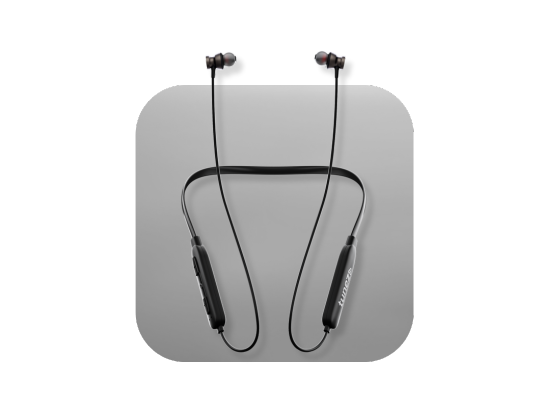
Shop wireless neckbands and enjoy hands free convenience powerful sound and flexible design that enhances your audio experience during work or leisure time.
Fix 1: Check And Set The Right Audio Output
Windows sometimes assigns the wrong output device automatically. A quick setting change can solve the “HEADPHONES SHOWING AS SPEAKERS” issue instantly.
Steps To Correct Audio Settings
- Right-click the volume icon in the taskbar.
- Select Sounds or Open Sound settings.
- Go to the Playback tab.
- Right-click your headphones and choose Set as Default Device.
- If your headphones don’t appear, right-click inside the window and enable: * Show Disabled Devices
* Show Disconnected Devices
This alone solves the problem for most users.
Fix 2: Check The Physical Connection
Sometimes the simplest things create the biggest problems. A dusty port or a loose plug can cause your HEADPHONES SHOWN AS SPEAKERS issue instantly.
Here’s What To Check
- Inspect the headphone jack for dust, dirt, or lint.
- Gently clean it with a soft brush or a dry cotton bud.
- Try connecting your headphones to a different port.
- If you’re using a desktop, test both the front and rear audio jacks.
- Look for cable bends, cuts, or loose connectors.
I once had a pair of headphones that kept switching to "speakers" mode until I found a tiny ball of lint stuck in the jack. A 10-second clean fixed weeks of confusion.
Fix 3: Update Or Reinstall Audio Drivers
When drivers malfunction, Windows often mislabels audio devices. Updating them can eliminate misdetections instantly.
How To Update Drivers
- Right-click Start and open Device Manager.
- Expand Sound, video and game controllers.
- Right-click your audio device (e.g., Realtek Audio).
- Select Update driver and choose automatic search.
- Right-click the same device again.
- Choose Uninstall device.
- Restart your computer—Windows will install fresh drivers.
This is one of the most effective long-term fixes.
Fix 4: Run The Windows Audio Troubleshooter
Windows includes a built-in tool to diagnose sound problems. It’s not perfect, but it can quickly detect issues you may miss.
To Run The Troubleshooter
- Go to Start > Settings > System > Sound.
- Scroll down to Troubleshoot under Output Device.
- Follow the prompts as Windows analyzes and fixes mismatches.
You can also right-click the sound icon and choose Troubleshoot sound problems.
This tool helps identify hardware conflicts or configuration errors behind the headphones recognized as speakers issue.
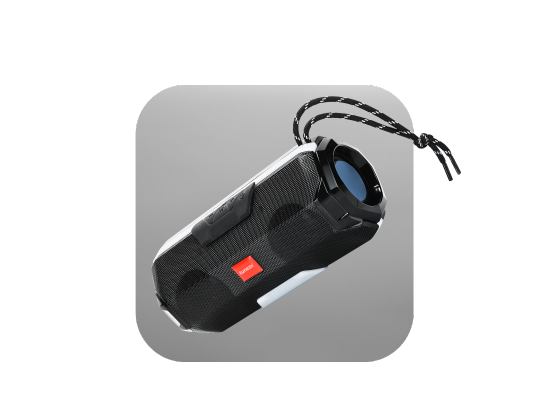
Shop Bluetooth speakers and unlock immersive audio lightweight portability and reliable performance for music calls and parties at any moment.
Fix 5: Try A Different Device Or App
Sometimes the problem isn’t your PC—it’s the app you are using.
Try switching output devices inside apps like Zoom, Teams, or games.
If headphones work fine with your phone or another laptop, you have isolated the issue to your Windows machine.
This makes troubleshooting far easier.
Fix 6: Check For Windows Updates
After some system updates, Windows may switch your default audio device or reset settings.
Go to Settings > Windows Update and install any pending updates.
These often contain sound compatibility patches.
Fix 7: Test With A USB Sound Card (Optional Fix)
If your audio ports are damaged or worn out, a simple USB sound card can bypass the issue completely.
They are affordable, plug-and-play, and help avoid future misdetections.
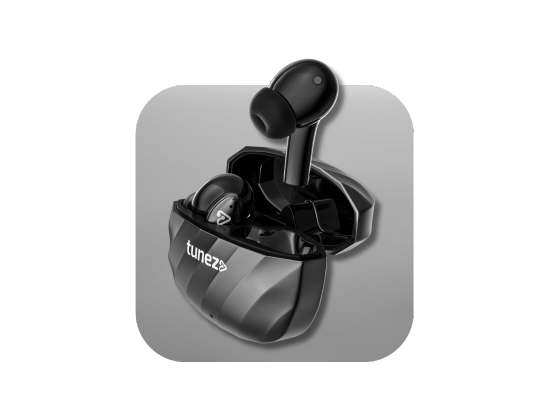
Buy true wireless earbuds and feel the power of freedom with stylish designs balanced audio and compact charging cases to keep you powered up anywhere.
Conclusion
If you have ever wondered, “Why are my headphones detected as speakers?” the issue is usually simple—and so is the fix. Start by checking your audio settings, inspecting the connection, updating your drivers, and running the Windows troubleshooter. These steps resolve most sound-output mix-ups and prevent the problem from coming back.
With these steps, you will get your audio back on track and avoid moments where sound plays from the wrong device at the worst time.
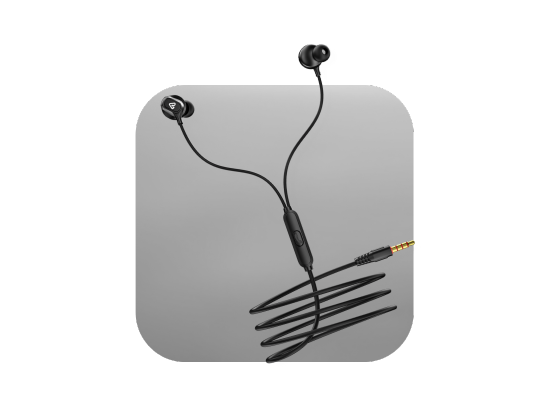
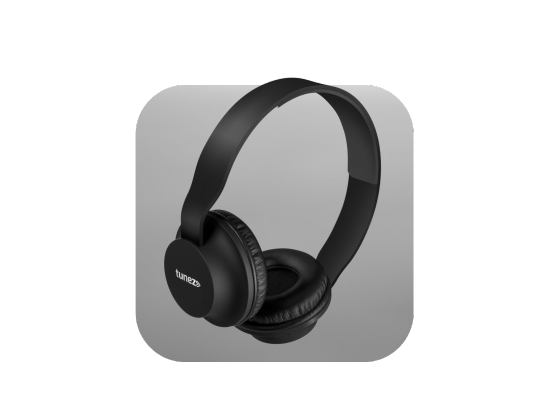
Shop wireless headphones with quick charging extended playtime and balanced sound designed for professionals gamers and everyday listeners alike.
FAQs About Headphones Recognised as Speakers
1. Why are my headphones recognised as speakers on Windows?
This usually happens due to incorrect sound settings or outdated audio drivers. Cleaning the jack or updating Windows often resolves the issue.
2. How do I fix headphones showing as speakers?
Set your headphones as the default device in the Playback tab. If that fails, update or reinstall your audio drivers.
3. Why are my headphones shown as speakers after a Windows update?
Updates sometimes reset audio settings. Re-selecting your output device usually fixes it in seconds.
4. Can a dirty headphone port cause detection problems?
Yes, dust or lint can block proper contact and make headphones appear as a different device. Cleaning the port helps instantly.
5. Why does sound still play through speakers when headphones are plugged in?
Your system may be using the wrong default output device. Choose your headset manually or run the audio troubleshooter.